How to Create a System User Access Token in Meta Business
By Aryan Pariyar7 min read
Quick answer
To create a Meta system user token, open Meta Business Suite Settings → Users → System users, add a system user, assign it only the ad accounts it needs, then click “Generate new token”, pick your app, tick only the permissions you need and copy the token once. For an ad-reporting tool like AdsLedger that means ads_read, ads_management and business_management, nothing more. Treat the token like a password: never share it or paste it into a chat.
What a Meta system user token is (and why it beats your personal login)
A Meta system user token is a long access key that lets software read or manage your business’s ad accounts through Meta’s Marketing API, without using anyone’s personal Facebook login. Meta describes system users as accounts that “represent servers or software” making API calls to assets owned or managed by a business portfolio.
That matters for Nepali agencies. If a tool uses a staff member’s personal token, the connection breaks when that person changes their password, loses their account or leaves. A system user belongs to the business, so the connection survives staff changes.
The trade-off: a token is powerful. Anyone who has it can do whatever its permissions allow on the assets you assigned. That is why this guide is about least privilege: give the system user only the ad accounts and permissions it really needs.
Before you start
Meta also notes that not every business has access to system users. If you don’t see the option, check that you are a full-control admin and that an app is linked to the portfolio.
- A business portfolio. If you don’t have one, follow our Meta Business Manager setup guide first.
- Full control (admin) access to that portfolio. Only admins can add system users.
- A Meta app connected to your portfolio. Meta’s help centre says you must own a Facebook app associated with your business portfolio to add system users. You can create a simple one at developers.facebook.com and connect it to your portfolio; it does not need to be published for your own business’s use.
- Your Business ID, which tools ask for alongside the token. See how to find your Meta Business ID.
Step 1: Add a system user
- Go to business.facebook.com and open Settings.
- In the left sidebar, under Users, select System users.
- Click Add (or Add new system user).
- Give it a clear name, for example “AdsLedger reporting”, so anyone can see what it is for.
- Choose the role. Pick the regular (employee) role, not Admin. Meta explains that an admin system user can create system users, add accounts and assign permissions, while a regular system user can only access the assets it is given. A reporting tool does not need admin.
- Click Create system user.
Step 2: Assign only the ad accounts it needs
Select the new system user and click Assign assets. Choose Ad accounts, then tick only the accounts you want the tool to see. If you manage ten clients but only want to track three in a tool, assign three.
For each ad account Meta asks what the system user can do. If you only want reports, view-only performance access is enough. If you want to pause, resume or extend campaigns from a tool (AdsLedger can do this), it also needs permission to manage campaigns on that account. Don’t give access to Pages, catalogs, pixels or WhatsApp accounts unless you have a specific reason.
Step 3: Generate the token with minimum permissions
- With the system user selected, click Generate new token (sometimes shown as Generate token).
- Select your app from the dropdown.
- Choose the token expiry if Meta offers the option. Meta’s developer docs call expiring (60-day) tokens a security best practice; a non-expiring token is more convenient but riskier if it leaks. If you pick 60 days, set a reminder to replace it.
- Tick only these permissions for ad reporting and campaign control: ads_read, ads_management, business_management.
- Leave everything else unticked: no pages_*, catalog_management, whatsapp_*, instagram_* or other scopes unless you know exactly why you need them.
- Click Generate token and copy it straight into the tool that needs it.
What each permission does
- ads_read: read ad accounts, campaigns, spend and results (reach, CPM, CTR, cost per result). Enough for reports.
- ads_management: change campaigns, such as pause, resume or change a budget or end date. Needed only if the tool controls campaigns.
- business_management: read the business portfolio and which ad accounts the system user was given, so the tool can list them.
- Anything beyond this list is not needed to track spend and results. More scopes means more damage if the token leaks.
Step 4: Connect it to AdsLedger safely
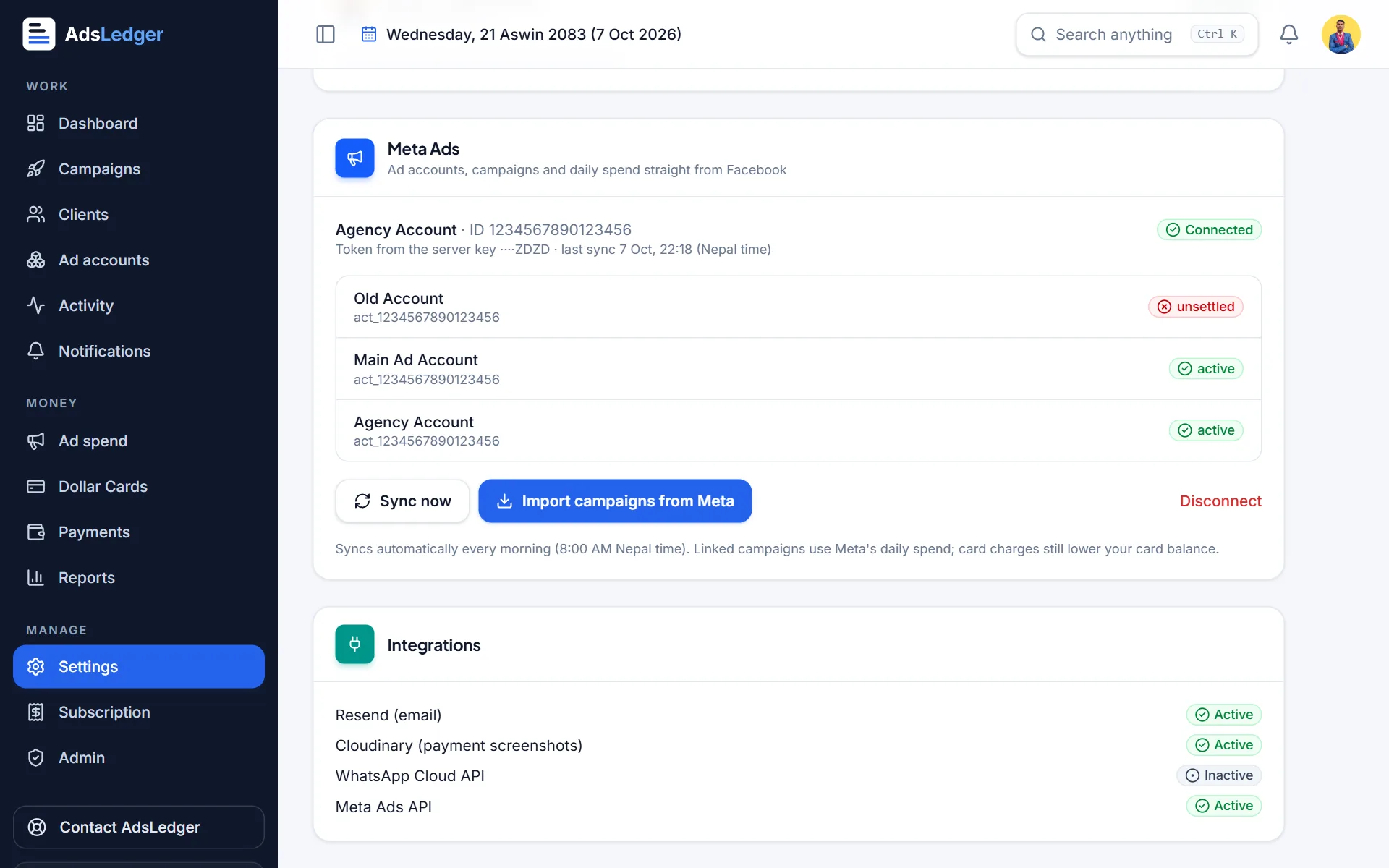
In AdsLedger, open Settings → Integrations → Meta Ads, paste your Business ID and the token, and save. The token field is a password field; AdsLedger stores the token encrypted and never shows it again. The full walk-through with screenshots is in the Connect Meta Ads tutorial.
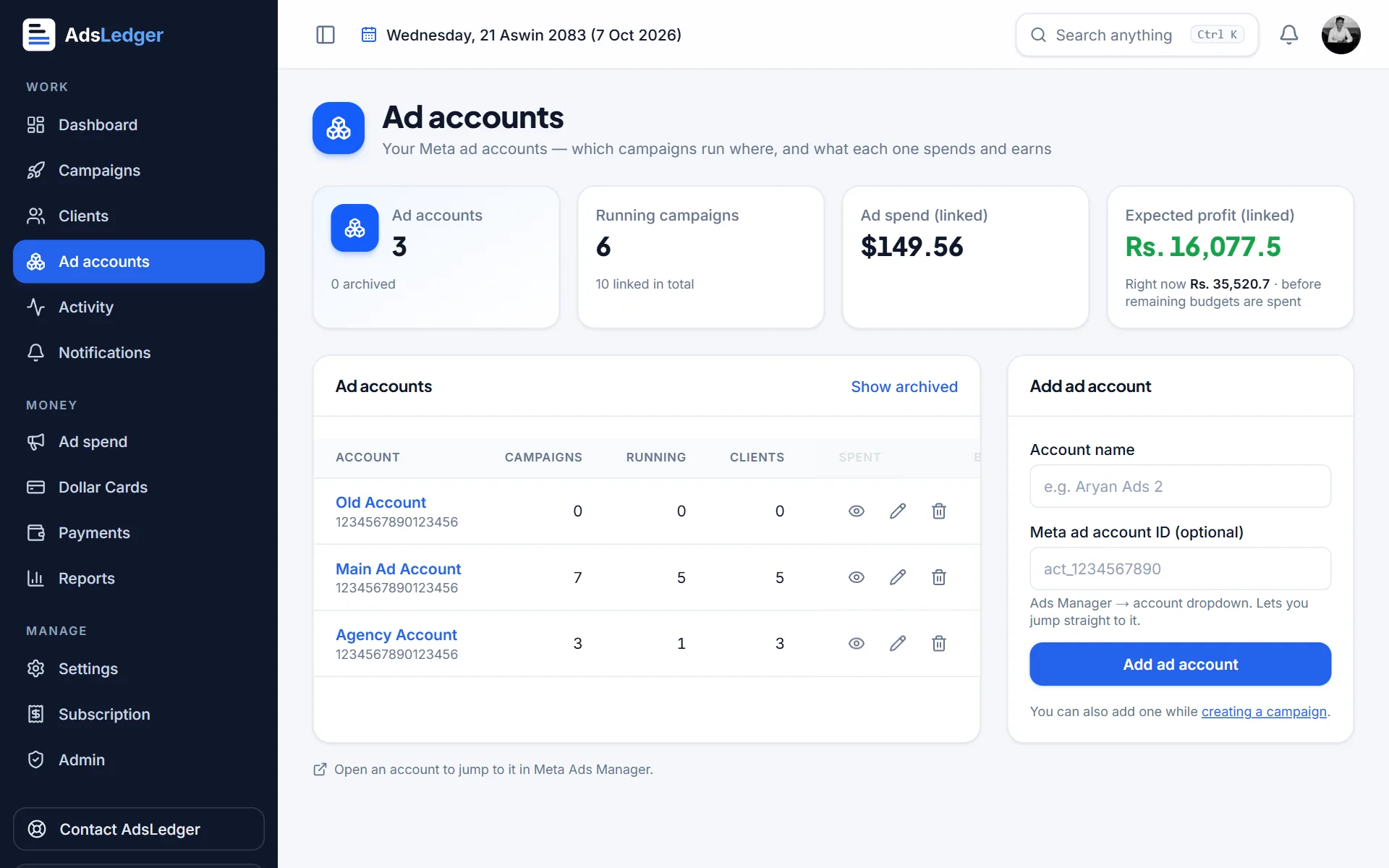
After connecting, AdsLedger lists only the ad accounts you assigned in Step 2. If none appear, the system user has no ad accounts assigned yet; go back to Assign assets.
How to revoke or rotate a token
If a token may have leaked, a staff member who saw it leaves, or you stop using a tool, revoke it. In Settings → Users → System users, select the system user and click Revoke tokens. Meta’s developer docs say revocation takes effect immediately.
To rotate without downtime: generate a new token, paste it into the tool, confirm data still syncs, then revoke the old one. Doing this every few months, or using 60-day tokens, keeps the risk small.
Frequently asked questions
Does a Meta system user token expire?
It depends on what you choose when generating it. Meta supports non-expiring system user tokens and 60-day expiring tokens, and its developer docs recommend expiring tokens as a security best practice. If yours expires, generate a new one and update it in your tool.
Which permissions does a system user token need for ad reporting?
For reading spend and results, ads_read and business_management are the core. Add ads_management only if the tool needs to pause, resume or edit campaigns. AdsLedger asks for exactly these three and nothing else.
Why can’t I see the System users option?
You need full control (admin) access to the business portfolio, and Meta requires an app associated with the portfolio. Meta also notes that not every business has access to system users.
Is it safe to share my system user token with a freelancer or agency?
No. Anyone with the token can act on every asset it was given. If someone needs access, add them as a person with partial access to specific assets, or give their business partner access, instead of sharing a token.
Sources
- Add System Users to Your Business Portfolio
- About System Users in Meta Business Suite
- Install Apps and Generate Tokens for System Users (Meta for Developers)
- Generate an access token for a system user (Meta for Developers)
- Get Started with the Marketing API (Meta for Developers)
Fees, limits and rules change — always confirm with your bank, Meta or the Inland Revenue Department. Examples are illustrations, not quotes.